

With faster loading times, better visuals, and all-new features, PS5 or PlayStation 5 hints at the beginning of a new era in gaming. However, users wanting to switch from an older version like PS4 to PS5 often raise concerns regarding seamless data transfer and saving big files, games, and other information.
- Turn on both consoles and connect them to the same Wi-Fi network. You can also use a local area network or LAN cable to increase the transfer speed.
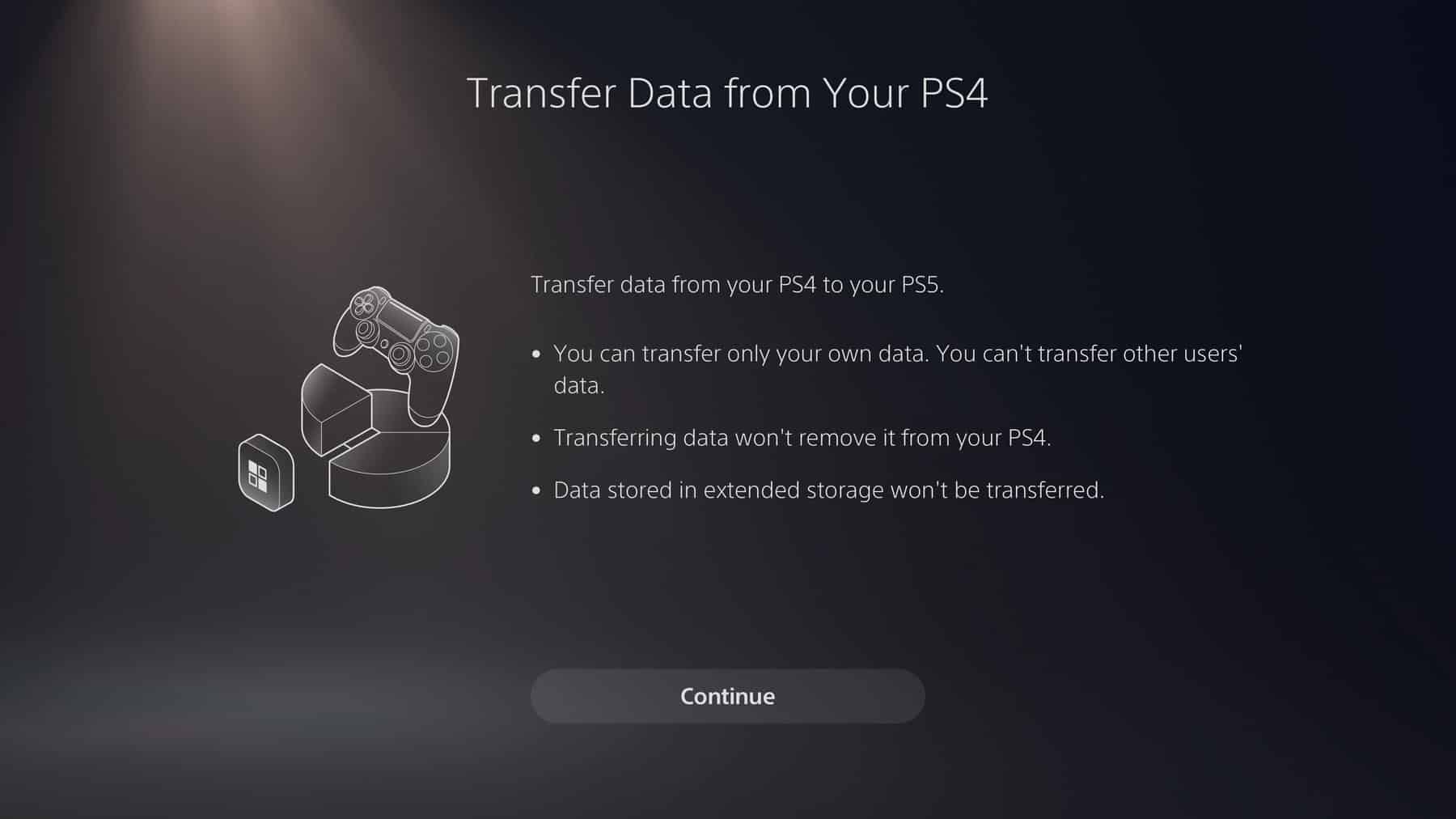
- Go to the settings of your PS5 and then to the System option. There on the System Software option, you will get the Data Transfer option. Click on the continue button there.
- Now you will get the chance to select the PS4 from where you want to transfer data.
- Upon selecting the PS5, you will see the prompt "Prepare for Data Transfer" option on your PS5. Just press and hold the Power switch until it starts beeping.
- Now, you will have to select the data you want to move, and the console will automatically restart as you take the data.
With faster loading times, better visuals, and all-new features, PS5 or PlayStation 5 hints at the beginning of a new era in gaming. However, users wanting to switch from an older version like PS4 to PS5 often raise concerns regarding seamless data transfer and saving big files, games, and other information.
Don’t worry, as Sony has come up with a stellar PlayStation data transfer process for you to move your data to your new PS5 effortlessly. In this article, we will walk you through the entire process so that you can continue upgrading your PlayStation without the fear of missing out.
How Can I Transfer Data from PS4 to PS5 after a Setup?
Whether you are transferring a specific app or game from PS4 to PS5 or vouching for an entire data transfer, the process is quite the same. The all-new PS5 has a Data Transfer option that allows us to import files from any nearby PS4 in its network radius.
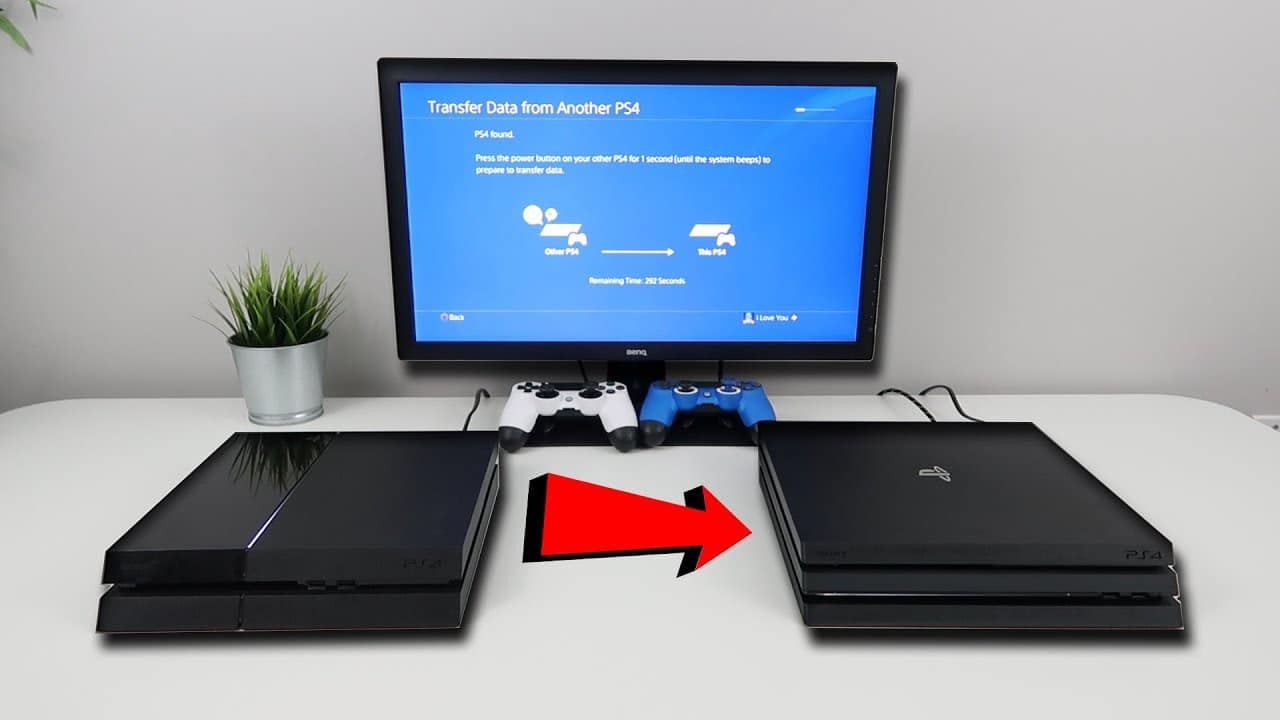
However, not all PS4s can perfectly pair with PS5 to make a direct file transfer. There are other traditional steps to transfer data to PS5 that you can utilize in such cases. These include using;
- Wi-Fi network
- Cloud storage
- An external storage drive
PS4 to PS5 Data Transfer Using Wi-Fi Network
The fastest way to transfer data from one PlayStation to another is by building a network connection. You will have to power on your previous PS4 and your recent PS5 with an internet connection.
It will be better if you have two separate monitors or TVs, one for each console. Though you can perform the data transfer using one display, having two eliminates the chances of swapping out HDMI cables during the process. Below are the steps to back up PS4 data for PS5;
- Turn on both consoles and connect them to the same Wi-Fi network. You can also use a local area network or LAN cable to increase the transfer speed.
- Go to the settings of your PS5 and then to the System option. There on the System Software option, you will get the Data Transfer option. Click on the continue button there.
- Now you will get the chance to select the PS4 from where you want to transfer data.
- Upon selecting the PS5, you will see the prompt “Prepare for Data Transfer” option on your PS5. Just press and hold the Power switch until it starts beeping.
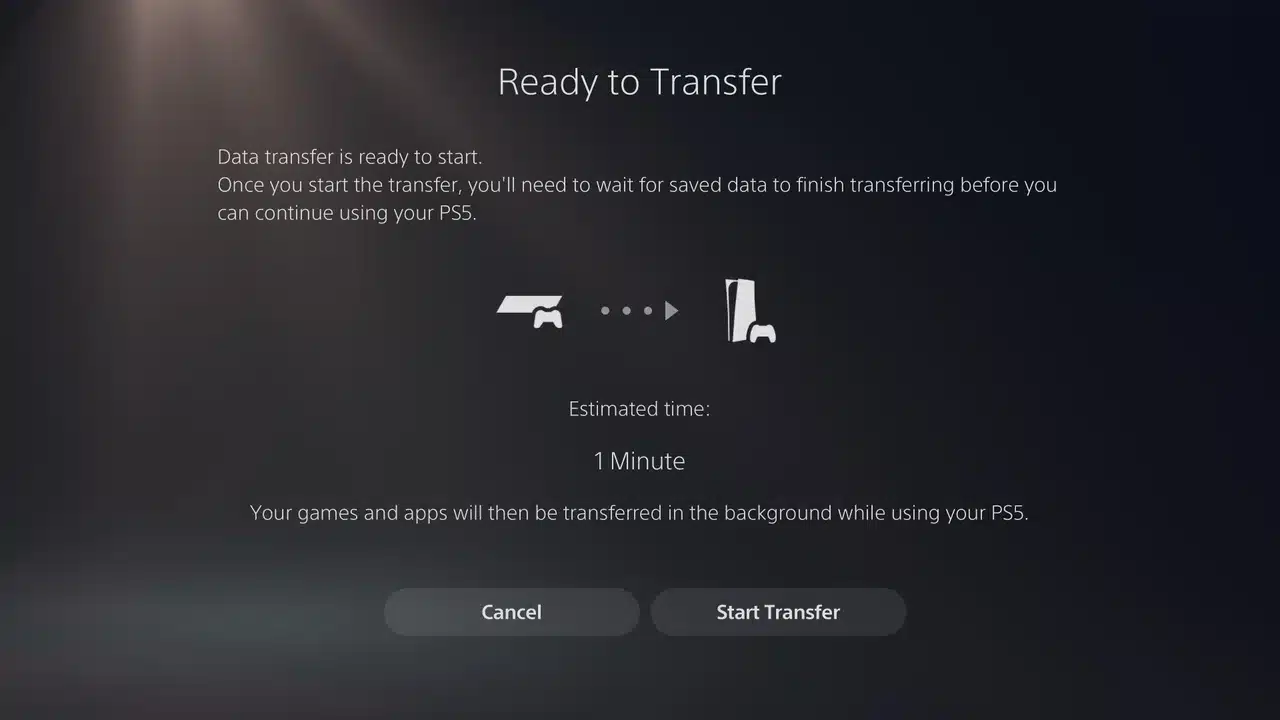
- Now, you will have to select the data you want to move, and the console will automatically restart as you take the data.
- Here, you can take single files or choose All.
- Your PS5 thereafter will show you the estimated time to complete the entire transfer.
Wait with full patience until the completion, and don’t ever turn off your PS4 or PS5 as long as the PlayStation data transfer process is going on.
PS4 to PS5 Data Transfer Using Cloud Storage
As you opt for a PS5 storage upgrade, PS4 games using cloud-based data transfer are comparatively safe and secure. But it will be only possible if you have a subscription, which means if you have a PlayStation Plus account.
Using cloud storage, you can easily access your data using any version of the PlayStation, whether PS4 or PS5. But for this, you will have to regularly back up your files on PS4 to transfer them to the PS5 when you have it.
- To migrate PS4 games to PS5 or any other file using cloud storage, first, go to the settings of your PlayStation.
- There, you will have to go to the “Application Data Management” option and thereby to the “Saved Data in System Storage”.
- From there, you can select the games you want to back up on the cloud and touch the “Upload to Online Storage” option to upload them for future use.
Now, to retrieve the data on your PS5, you will have to take the following steps;
- Go straight to the settings of your PS5 and then to the “Saved Data and Game Settings”.
- Now select the Saved Data from your PS4 from the Cloud Storage.
- Now, as you go, select the “Download to Console Storage” option. From there, you can choose a single game or all of them to download to your new PlayStation.
PS4 to PS5 Data Transfer Using an External Storage Device
Suppose you don’t have a PlayStation Plus account and still want to transfer data from one PlayStation console to another. So, for that, data transfer can be your way out. Using a USB flash drive or an external hard drive is a great way to transfer PlayStation data. Here is how you will transfer data using this process;
- First, insert the USB drive into one of the USB ports of your previous PlayStation model.
- Now go to Settings, then Application Saved Data Management, and then Saved Data in System Storage.
- Now, you will select the “Copy to USB Storage Device.”
- Here, you can select the files you want to move by copying them onto the drive.
- As soon as your desired files are copied into the USB, remove it.
- Now, insert the USB drive into the USB port of your PS5.
- There, on the Saved Data (PS4), you will have to select the USB Drive.
- Now, finally, select the option of “Copy to Console Storage”. This way, you will get your desired apps or games on your PS5.
It is true that transferring the evergreen games or some essential files is necessary when it comes to transferring data. But, later, you may also want to play new, exciting games using your PS5. Therefore, do not blindly copy and paste everything from your PS4. Do not migrate PS4 games to PS5 without pondering whether you will play them or not.
So, these are the basic steps to transfer data to PS5. You can try any of them, considering your convenience and ease of operation. But all the PlayStation games are quite big. Therefore, you will have to be mindful of the storage of your PS5 as well.
Related: How To Port A PC Game To The Console?
Related: How to Use a PS4 Controller on a PS5?
Frequently Asked Questions
How Can I Transfer Data from PS4 to PS5 after a Setup?
Whether you are transferring a specific app or game from PS4 to PS5 or vouching for an entire data transfer, the process is quite the same. The all-new PS5 has a Data Transfer option that allows us to import files from any nearby PS4 in its network radius.
Last updated on


